| File Button Settings
|


|
|
| Clicking the File icon on the left pane in the Button Configuration window displays its current button settings on the right pane.
|
|
|
| The settings can be categorized into two: File Saving Settings on the upper part, and Scan Parameters on the lower part.
|
|
|
| The items and parameters available in the window are explained as follows:
|
|
|

|
|
|
| File Saving Settings
|
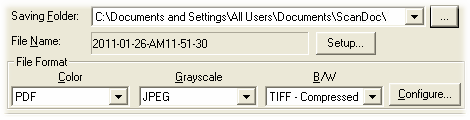
| Determine how the scanned documents or images are saved to files.
|
|
|
|
|
|
| Saving Folder
|
| The scanned documents or images are automatically saved to the folder displayed here.
|
|
|
To select or modify the saving folder, click  to open a dialog box where you may browse your disk drives to select a desired saving folder. (Open Folder After Scanning: Tick this check box if you want the program to automatically open the saving folder after scanning.) You can also directly enter the folder name in this field to create a new folder. This newly added saving folder will be added to the drop-down menu. Next time when you want to use this folder again, you may simply click to select it from this drop-down menu. to open a dialog box where you may browse your disk drives to select a desired saving folder. (Open Folder After Scanning: Tick this check box if you want the program to automatically open the saving folder after scanning.) You can also directly enter the folder name in this field to create a new folder. This newly added saving folder will be added to the drop-down menu. Next time when you want to use this folder again, you may simply click to select it from this drop-down menu.
|
|
|
|
|
| File Name
|
| Specifies the file name format to save scanned documents or images. The file name extension is automatically added according to the file format you set up.
|
|
|
The current file name format is displayed in the gray rectangle. To change to a different format, click  to open the File Name Setup window. to open the File Name Setup window.
|
|
|
|
|
| File Format
|
| Determines the image file format to save the scanned documents or images to. The following file formats are available from the drop-down list box:
|
| · | JPEG - Not available for B/W scan mode.
|
| · | TIFF - Uncompressed
|
| · | TIFF - Compressed
|
| · | PDF
|
| · | PNG
|
| · | Windows Bitmap
|
|
|
|
|
| Different file formats can be set for different scan modes. For example, if you usually need color images in JPEG and B/W images in BMP, you may configure so here. Next time when you scan a document in color first and then another document in B/W, you may simply change the scan parameters without the trouble of changing file formats frequently.
|
|
|
Clicking  opens the File Format Configuration window where you may configure advanced settings for JPG, TIFF - Compressed and PDF file formats. opens the File Format Configuration window where you may configure advanced settings for JPG, TIFF - Compressed and PDF file formats.
|
|
|
|
|
|
|
| Scan Parameters
|
| · | Scan Type
|
| · | Split
|
| · | Page Size
|
| · | Scan Mode
|
| · | Document Type
|
| · | Resolution
|
| · | Brightness
|
| · | Contrast
|
| · | Gamma
|
| · | Threshold
|
| · | Color Dropout
|
| · | Descreen
|
| · | Filter
|
| · | Page Settings
|
| · | Continuous Scan
|
| · | Apply Color Matching
|
| · | Auto Density
|
| · | Auto Crop
|
| · | Multi-Crop (This function may or may not be available depending on the scanner model you purchase.)
|
| · | Auto Deskew
|
| · | Image Edge Fill
|
| · | Multi-image output (This function may or may not be available depending on the scanner model you purchase.)
|
| · | Remove Punch Holes (This function may or may not be available depending on the scanner model you purchase.)
|
| · | Remove Background
|
| · | Denoise
|
| · | Character Enhancement
|
| · | Global Settings
|
| · | Preview
|
| · | Default
|
|
|
| Also see:
|
 How do I configure the File button? How do I configure the File button?
|
|
|
|
|
|
|
|
|
|
|